In Canvas, open Calendar, click Calendar Feed and copy the link. Then open Outlook on the web: outlook.office.com if you sign in with your school's Microsoft 365 account, outlook.com if it is a personal Microsoft account. Select Calendar, then Add calendar, then Subscribe from web. Paste the link and select Import.
That is the whole setup. The subscription is saved to your Outlook account, not to one device. For a school account, Microsoft says it also appears in classic Outlook for Windows under Other Calendars. Changes are not instant. Microsoft says a subscribed calendar refreshes about every 3 hours on Outlook.com and about every 6 hours on Outlook on the web, and that an update can take more than 24 hours.
Where do I find my Canvas calendar feed link?
- Log in to Canvas and click Calendar in Global Navigation.
- Click Calendar Feed.
- Copy all of the text in the URL field.
Skip the Click to view Calendar Feed link. That downloads the feed as an .ics file, which is a copy of today's calendar rather than a live link.
One link covers all your courses. Canvas says the feed holds events and assignments from all of your Canvas calendars: past events from the last 30 days, future events up to 366 days ahead, and up to 1,000 items in total.
How do I subscribe to it in Outlook on the web?
Subscribing on the web works for both kinds of Microsoft account, and it is where Microsoft sends you when a desktop app refuses a calendar. Do it on a computer.
With a school Microsoft 365 account
- Go to outlook.office.com and sign in with your school email.
- Select Calendar in the navigation pane.
- Select Add calendar.
- Choose Subscribe from web.
- Paste the Canvas link. If Outlook asks for a name, use one you will recognise, such as Canvas.
- Select Import, then Save if Outlook shows it.
With a personal Outlook.com account
The steps are the same at outlook.com: Calendar, Add calendar, Subscribe from web, paste the link, Import. The difference is the refresh clock. Microsoft gives about 3 hours for Outlook.com against about 6 for Outlook on the web.
On either account, Add calendar also offers Upload from file. Do not use it for Canvas. Microsoft is plain that an imported calendar is a snapshot of the events at the time you import it, and Outlook does not refresh it. When a professor moves the midterm, an uploaded calendar keeps the old date.
Can I add it from the Outlook desktop app?
Yes, though Outlook on the web is still the safer route.
New Outlook for Windows
Microsoft gives new Outlook the same path as the web. Open the calendar, select Add calendar, choose Subscribe from web, paste the Canvas link and select Import. Microsoft lists this path under the same silent failure as classic Outlook below. If the window closes with nothing added and no error, use Outlook on the web.
Classic Outlook for Windows
Microsoft's steps: open the calendar, then in the Manage Calendars group on the toolbar select Open Calendar, which some versions label Add Calendar. Choose From Internet, paste the link and select OK.
That works, with two catches:
- It can fail without saying so. With some calendar servers, a progress window opens briefly and you land back in the calendar with nothing added and no error. Microsoft's workaround is to add the calendar in Outlook on the web instead.
- It stays on that one computer. A Microsoft support moderator explains that classic Outlook keeps a From Internet calendar in a local folder, so Outlook on the web and the phone app never see it.
Subscribing on the web avoids both. Microsoft says a calendar added in Outlook on the web shows up in the classic desktop app under Other Calendars, and the server handles its updates, so there is nothing to set up on the computer.
Outlook for Mac
Microsoft's support pages do not give Outlook for Mac its own subscribe steps. Subscribe on the web with the account your Mac's Outlook uses, then look for the calendar in the Mac app's calendar list. Microsoft documents the Other Calendars behaviour for Windows only, so check the list rather than assuming it.
Will it show up in the Outlook phone app?
Probably, if you subscribed on the web. Probably not, if you used classic Outlook's From Internet.
The Microsoft help pages listed under this post give subscribe steps for the web and the desktop apps, not for the phone app, and they say nothing either way about subscribed calendars on a phone. The closest thing to an answer is that same Microsoft support moderator on Microsoft Q&A. According to that answer, a calendar subscribed at outlook.office.com with Subscribe from web syncs to the Outlook app on Android, and one added through classic desktop Outlook does not.
So subscribe on the web, open the app, and check its calendar list before you count on it. If Canvas is missing there, your phone's own calendar app can subscribe to the same link: how to get Canvas due dates on your phone covers iPhone and Android.
How long does a changed due date take to reach Outlook?
Hours, and sometimes more than a day. Microsoft's figures for a subscribed calendar:
- Outlook.com: about every 3 hours.
- Outlook on the web: about every 6 hours. A Microsoft Learn article gives about every 4 hours for calendars added there.
- Either one: Microsoft says an update can take more than 24 hours.
None of Microsoft's pages offers a way to make Outlook check sooner. If an exam moved this morning, Outlook may still show the old time tonight, so for anything that changed today, check Canvas itself or the announcement.
You never need to subscribe again because a date moved. Changed, new and removed items arrive with the next refresh.
Why is my Canvas calendar empty or missing something in Outlook?
Work down this list.
- You imported instead of subscribed. A calendar made with Upload from file, or by opening the downloaded .ics file, never updates. Delete it and subscribe with the link.
- You joined a course after subscribing. Canvas says that after you enroll in a new course, you add the feed again to include it. Copy the link, subscribe again, and remove the old calendar so nothing shows twice.
- The link is cut short. Copy the whole URL field again, down to the last character, and subscribe with that.
- A desktop app dropped it. If you used From Internet in classic Outlook or Subscribe from web in new Outlook and nothing appeared, that is the silent failure above. Use Outlook on the web.
- The item has no due date. An undated assignment has nothing to be placed by, so it is not on any calendar.
- It is a Canvas To Do item. Canvas says To Do items are not in the calendar feed.
- It is older than 30 days. Past events drop out of the feed after a month.
If the assignment is missing from the calendar inside Canvas as well, the cause is in Canvas, not Outlook. Canvas calendar not showing assignments? goes through those causes in order.
What does the Canvas feed leave out, and can Scholarwire fill it?
The Canvas feed is due dates and course events. It carries no To Do items, nothing undated, and none of your study time. A course you join mid term also needs the link added again.
Scholarwire publishes a second calendar link built from your synced Canvas courses. In Scholarwire, open Settings, then Calendar, and select Turn on calendar sync. Under What to include you choose what goes on the link:
- Assignments, each at its due time as a short event starting with "Due:".
- Class meetings and exams, from your Canvas course calendars.
- To-dos, the Canvas to-dos that have a date, and to-dos you add yourself.
- Study blocks, from your study plan. These change every time the plan regenerates.
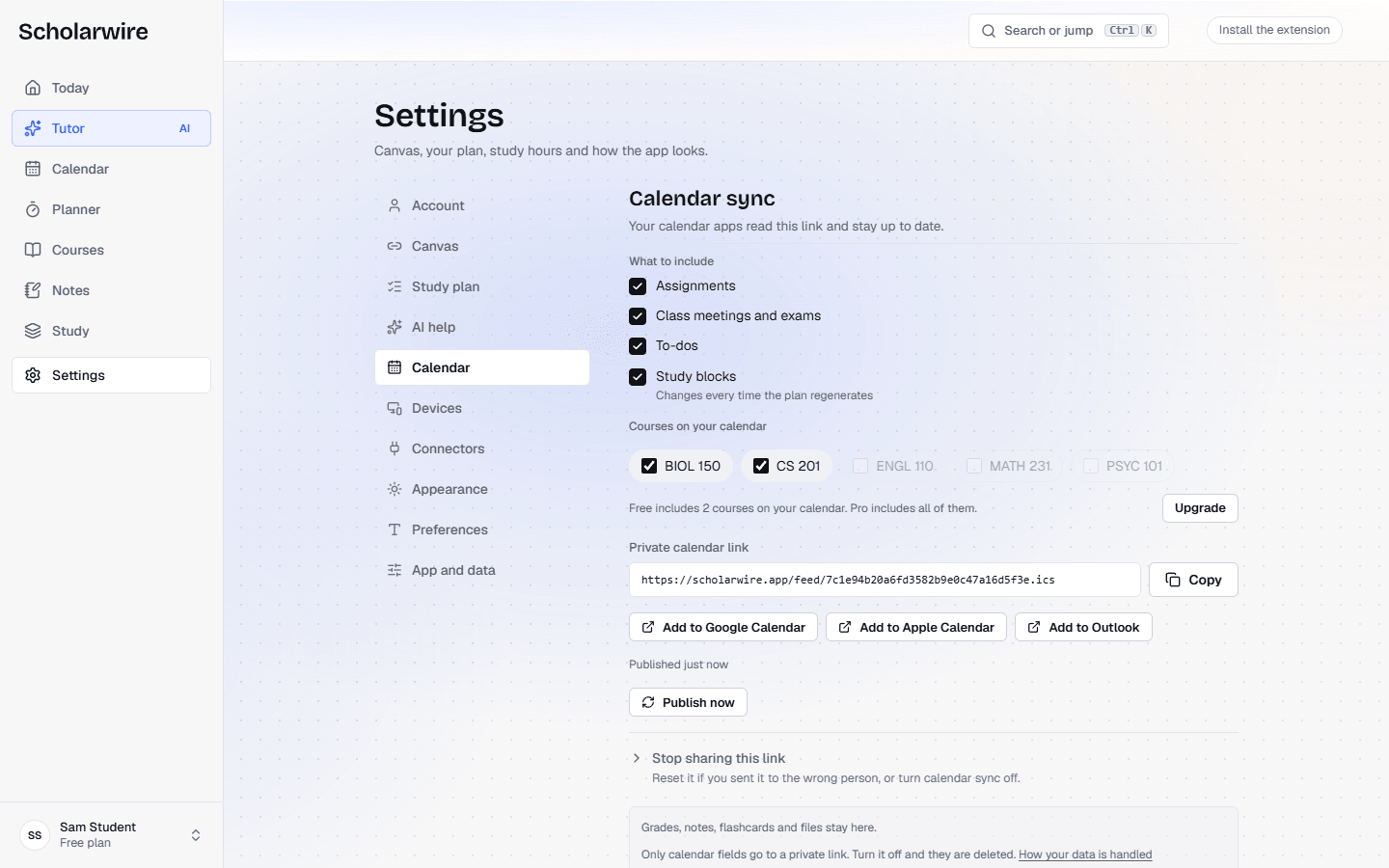
To put it in Outlook, match the button to your account:
- Personal Outlook.com account: select Add to Outlook. It opens Outlook.com (outlook.live.com) with the link passed along.
- School Microsoft 365 account: Add to Outlook opens the personal site, so do not use it. Select Copy next to Private calendar link, then paste it into outlook.office.com under Add calendar, Subscribe from web.
What to know before you rely on it:
- It publishes from one browser. The link updates from the browser where you turned calendar sync on, a few seconds after a change or a sync, while Scholarwire is open there. Outlook then fetches it on Microsoft's schedule, so the hours above hold for this link too.
- Free puts 2 courses on the link. You pick which two. Pro includes all of them, and a course you join mid term appears on the same link after the next sync, with nothing to add again. Connecting Canvas starts 14 days of Pro, no card. Compare the plans.
- Your courses arrive through the extension. Scholarwire for Canvas runs in Chrome, Edge, Brave or Arc on a computer. It is not on the Chrome Web Store yet; the install page has the steps that work today. The extension syncs Canvas every 30 minutes on Pro and once a day on Free, plus when you open the app and when you ask.
- Some layers have a window. Class meetings, to-dos and study blocks on the link run from 60 days back to 240 days ahead. Assignments have no window: every dated assignment from the courses on the link is on it.
- Undated work stays off. An assignment with no due date is not on this link either.
- The link is a password. Anyone who has it can see your schedule. Only calendar details leave the app: titles, dates, times, course names, locations, and each assignment's Canvas description, point value and link. Class meetings from Canvas carry their description and link too, Canvas to-dos their link, and items you add yourself their notes. Grades, flashcards, files and anything in Notes stay. If the link reaches the wrong person, open Stop sharing this link and select Reset link. The old link stops updating everywhere, so subscribe Outlook to the new one and remove the old calendar.
Using Google Calendar as well as Outlook? The same Canvas feed works there: see how to add Canvas to Google Calendar. For reading every course's dates in one list inside Canvas, see how to see all your Canvas assignments in one calendar.
Common questions
How do I remove the Canvas calendar from Outlook?
On Outlook.com, open your calendar list, select More options next to the calendar, then Remove. Remove the old copy whenever you subscribe again for a new course, so nothing shows twice.
Can I change a Canvas assignment from Outlook?
No. Outlook only reads the feed, and nothing you do in Outlook reaches Canvas. A due date changes when your instructor changes it in Canvas, and Outlook picks that up at its next refresh. Submissions still happen in Canvas.
Why does an assignment due at 11:59 pm show as an all day event?
Canvas sends an assignment due at exactly 11:59 pm as an all day event on its due date, which is how its calendar export code is written. Outlook puts it in the all day row with no time. Other deadlines carry a time, and Outlook shows them in its own time zone, so if that zone differs from your school's, a late evening deadline can land on the next or previous day.
Is my Canvas calendar feed link private?
Only as private as you keep it. Outlook fetches the link without signing in to Canvas, so anyone holding it can read what it carries. Paste it into your calendar and nowhere else.
Sources
- community.instructure.com/en/kb/articles/662804-how-do-i-view-the-calendar-ical-feed-to-import-and-subscribe-to-an-external-calendar
- support.microsoft.com/en-us/office/import-or-subscribe-to-a-calendar-in-outlook-com-or-outlook-on-the-web-cff1429c-5af6-41ec-a5b4-74f2c278e98c
- support.microsoft.com/en-us/office/add-a-calendar-in-outlook-com-or-outlook-on-the-web-6641b635-2797-42ce-a500-597eaef0fd19
- support.microsoft.com/en-us/office/import-calendars-into-outlook-8e8364e1-400e-4c0f-a573-fe76b5a2d379
- learn.microsoft.com/en-us/troubleshoot/outlook/calendaring/cannot-add-an-internet-calendar
- learn.microsoft.com/en-us/answers/questions/5595549/outlook-for-android-url-calendar-sync
- github.com/instructure/canvas-lms/blob/master/app/models/calendar_event.rb
- github.com/instructure/canvas-lms/blob/master/app/models/abstract_assignment.rb
Topics:canvascalendaroutlook